Backstory: I bought Acorn for a specific project I’m working on. I’ve never actually used this category of software before. (My minimal CorelDraw exposure ca. 1993 doesn’t count at this point.) Maybe the problem is that I’m trying to run before I can walk.
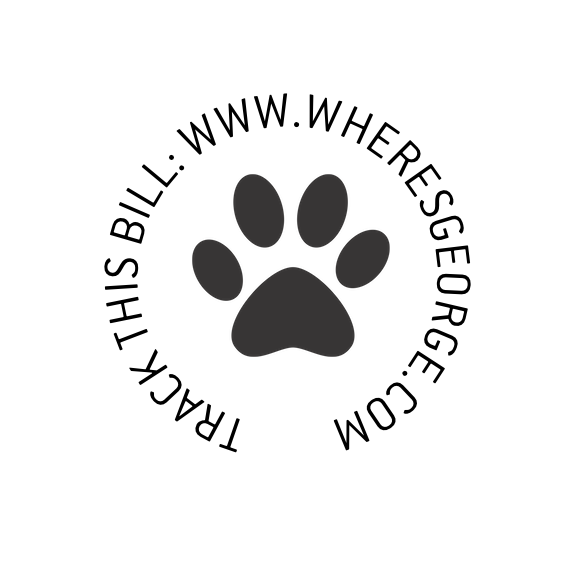
I have a graphic that consists of an image (downloaded from a royalty-free image website) in the center of some text in a circle. I created the text in a circle, and that functionality was the major reason I bought Acorn.
The file consists of black pixels on a white background—no halftones, no shading, nothing, every pixel is either black or white. I want to change every black pixel to red. Sounds like a job for Color Swap.
I gather from the help file that I can invoke Color Swap by mousing on View and then Swap Colors. When I do this, the words Color Swap appear momentarily above the canvas, but nothing else happens. There must also be a step I’m missing where I say what color I want to swap for what color.
I’m using Acorn 8.11 under Sequoia. Thanks for your thoughts.
The color swap action swaps the back color with the front color (or stroke and fill if you’re familiar with that). You’ll see the color wells below the tool icons change when you do this.
What I think you’re probably after is the Filter ▸ Color Adjustment ▸ Replace Color… filter. Wit that, you can select black as the “Remove” color, and red as the “Replace” color. You can also adjust the tolerance which will tell Acorn how close to the remove color it needs to match for it to be replaces.
You might also be able to get away with the “False Color” filter, depending on what your image looks like.
If you can post your image and what you’d like to change, I might be able to come up with different suggestions as well.
I tried your suggestion, and the text turned red, but the paw print image didn’t. While I’m at it, when the dust has settled, I’d like to have saved the image in a vector, not bitmap, format. Thank you.
I’m guessing that the paw print is on a different layer, so you’d have to apply the effect there as well.
For vectors, you can export the image as a PDF or SVG.
If the paw layer is a bitmap, you’ll need to trace that as a path, or convert to to a vector using the selection tools and then using the Select ▸ Make Shape from Selection menu item. Otherwise it’ll still be a bitmap if you save it as PDF.